How to Save High-Quality Pinterest Images in Seconds?
Save high-quality Pinterest images easily and instantly, even when Pinterest compresses them or blocks downloads. Pinterest is one of the best platforms for design ideas, photography, fashion inspiration, and creative visuals—but almost everyone faces the same problem: images turn blurry or low-quality as soon as you save them.
Sometimes it gets even more frustrating. You find the perfect image, but Pinterest doesn’t even show a download or save option at all. No right-click. No save button. Nothing.
If you’ve ever downloaded a Pinterest image and felt disappointed by how it looked — or couldn’t download it at all — you’re not alone. Most users think there’s no solution and just move on.
The good news is that there’s an easy way to download original HD Pinterest images, even when Pinterest doesn’t allow direct saving — without installing apps, signing up, or dealing with watermarks, and it only takes a few seconds.
Why Pinterest Images Look Blurry When Saved (Quick Fix)
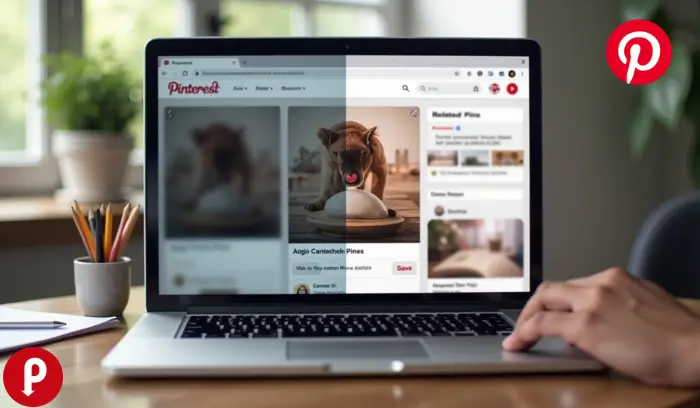
When you right-click and save an image from Pinterest, you usually get the compressed preview version, not the original high-resolution file. This results in grainy or pixelated images that aren’t suitable for design projects or presentations.
Pinterest compresses images to:
- Improve page load speed.
- Optimize performance across devices.
- Reduce bandwidth usage.
For most users, the saved file ends up much lower quality than what you see on the screen.
🔗 Anchor text: Pinterest tips for beginners
Introducing PinDownloads – Free Pinterest Downloader for HD Images
To solve this problem, the easiest and fastest way is to use PinDownloads, a free online tool that lets you download high-quality Pinterest images, videos, and GIFs — instantly and without any app installation.
➡️ Use the tool here: https://pindownloads.com
Here’s why PinDownloads is ideal:
- 🎯 Original HD image downloads
- 🚀 Fast processing — seconds to download
- 📱 Works on desktop and mobile browsers
- 💯 No signup, no tracking, no limits
- 🔐 Secure and private
Whether you’re saving visual inspiration or preparing content for projects, PinDownloads makes the process simple.
How to Download HD Pinterest Images on Desktop (5 Seconds)
Follow these easy steps to download high-quality images from Pinterest on your computer:
1. Find Your Pin
Open Pinterest and locate the image you want.
2. Copy the Link
Click on the Pin and copy the URL from the browser’s address bar.
3. Open PinDownloads
Visit https://pindownloads.com in a new tab.
4. Paste & Download
Paste the copied link into the tool’s input box and click Download. You’ll get the original image in high resolution.
5. Save to Your Device
Choose your save location — and that’s it!
This method bypasses Pinterest’s low-quality preview downloads by extracting the actual source file.
How to Save High-Quality Pinterest Images on Android & iPhone
You don’t need any apps to download full-quality images on mobile.
Android (Chrome Browser)
- Open Pinterest and find the Pin.
- Tap the share icon > Copy Link.
- Open Chrome and visit https://pindownloads.com.
- Paste the link and tap Download.
- Save the image to your gallery.
iPhone (Safari Browser)
- Find the Pin in Pinterest.
- Copy the link.
- Open Safari and go to PinDownloads.
- Paste the link and download.
- Tap Save Image.
💡 Pro Tip: On mobile, enabling “Request Desktop Site” can improve previews before downloading.
Desktop vs Mobile Comparison Table
| Feature | Desktop | Mobile |
| Speed | Batch friendly | One tap |
| Quality | Full preview | Auto HD |
| Best For | Working with many images | On-the-go saves |
Troubleshooting: Fix Common Download Issues
If the download doesn’t work right away, here are quick fixes:
“Invalid Link” Error
Make sure you copied a public Pin URL — not a board or profile link.
Blurry Images Again?
Ensure you’re downloading the original source via a downloader; Pinterest’s built-in save option often compresses files.
Slow Downloads
Clear your browser cache, or try another browser.
| Issue | Quick Fix |
| Invalid link | Recopy the Pin URL |
| Low quality | Use original source download |
| No download | Clear browser cache |
Bulk Download Tips for Designers & Creators
If you frequently save Pinterest content, try these workflow tips:
Queue Multiple Pins
Open several Pins in tabs and download them one by one.
Organize Smartly
Create folders by project, theme, or client name to stay organized.
Use With Editing Software
Once downloaded, you can use your HD images in tools like Photoshop, Canva, Figma, or Illustrator.
Is PinDownloads Safe? Privacy & Security Explained
One common concern is safety. The good news:
- 🔒 No login required
- 👀 No tracking or download history stored
- 🛡️ HTTPS security protects transfers
- 🔓 No malware or ads that hijack your browser
Security matters — especially when dealing with third-party tools. PinDownloads keeps privacy a priority while providing fast downloads.
PinDownloads vs Competitor Tools
Here’s how PinDownloads compares to generic downloader sites:
| Feature | PinDownloads | Other Tools |
| Speed | Less than 10 sec | Slower |
| Quality | Original HD | Compressed |
| Limits | Unlimited | Often capped |
| Privacy | No logs | Some store data |
| Ads | Minimal | Heavy |
PinDownloads offers a smooth, secure, and high-quality experience that many competitors don’t match.
FAQs
How to save high quality images from Pinterest?
You can save high-quality images from Pinterest by copying the Pin link and using a Pinterest image downloader that extracts the original source image, not the compressed preview.
This works even when Pinterest doesn’t show a download option.
No apps, sign-ups, or quality loss are required.
How to enhance Pinterest image quality?
To improve your Pinterest images, use vertical pictures with a 2:3 aspect ratio. Bigger images around 1000 x 1500 pixels work best. Make sure your profile picture is 160 x 160 pixels and cover photo is at least 800 x 450 pixels.
How to save a photo as high resolution?
Open the photo in Lightroom or Canva, then choose the enhance or upscale option (in Lightroom: Photo > Enhance > Super Resolution, in Canva: use the Enhance / Magic Resize tool) to create a sharper, higher-resolution version of your image.
What’s the best image resolution for Pinterest?
The ideal size for Pinterest is 1000 x 1500 pixels with a 2:3 aspect ratio. Pinterest recommends this ratio because other sizes may not display well or perform as effectively.
Why are my Pinterest pics blurry?
Blurry images usually happen if your file format or size isn’t supported, or if your internet connection is slow. You can also try clearing your browser cache, switching browsers, or turning off extensions that might block image quality.
Is it legal to download Pinterest images?
Only for personal use; always respect copyright and creator rights.
Conclusion
Saving high-quality Pinterest images doesn’t have to be frustrating. Whether images appear blurry, Pinterest blocks the download option, or right-click saving is disabled, there’s an easy solution that works every time. By using a reliable online tool like PinDownloads, you can quickly download original HD images, videos, and GIFs — without apps, sign-ups, or watermarks.This not only saves time but also ensures your visual projects, presentations, or creative work look professional. Next time you find the perfect Pinterest image, remember: with the right method, you can keep it crystal clear in just seconds.