How to Download Pinterest Videos on Android (Complete Guide)
Downloading Pinterest videos on Android is easier than most people think. If you’ve ever seen a great Pinterest video—like a DIY idea, recipe, or workout—and wished you could save it to your phone, you’re not alone. The problem is that Pinterest doesn’t offer a built-in download button.
The good news? There’s a simple trick that lets you download Pinterest videos in seconds.
In this guide, you’ll learn the fastest and easiest way to download Pinterest videos on Android without installing apps, creating accounts, or paying for anything. Once you try it, you’ll see how quick it is to save Pinterest videos and watch them anytime—even offline.
Quick tip: You can download a Pinterest video to your Android phone in under 10 seconds—and you don’t need to install any apps.
Keep reading, and I’ll show you exactly how it works.
If you’re using an Apple device instead of Android, you can follow our step-by-step guide on how to download Pinterest videos on iPhone.
Why Pinterest Focuses on Saving Instead of Downloading
Pinterest is designed to keep content inside its platform. Instead of giving users a download option, Pinterest encourages people to save Pins to boards.
When you tap Save, the Pin is stored on one of your Pinterest boards so you can organize ideas like recipes, home projects, travel plans, or workouts.
This system helps users keep everything organized, but it can be frustrating when you want to watch a video offline or share it outside the app. Because of this limitation, many people use trusted Pinterest download tools to save videos directly to their devices.
The Easiest and Safest Method: Using PinDownloads in Chrome
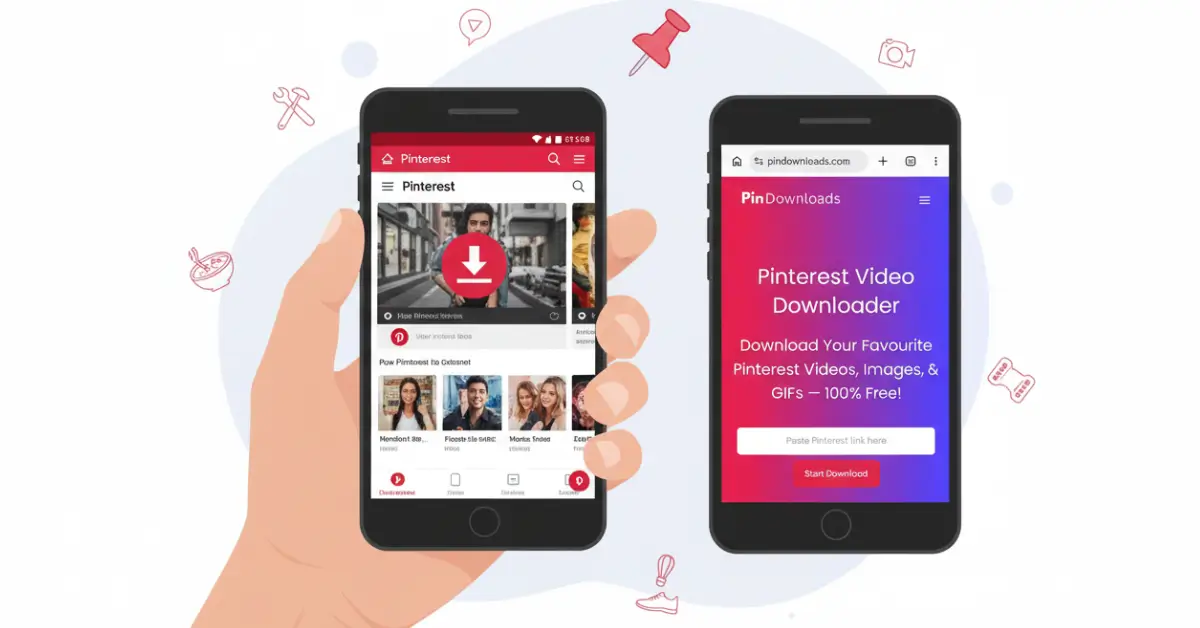
The fastest and safest way to download Pinterest videos on Android is by using PinDownloads in your Chrome browser.
With this method, you don’t need to install any apps or create an account. You simply copy the Pinterest video link, paste it into the downloader, and your video will start downloading.
From my experience, this method is not only easier than using apps—it’s also faster and avoids unnecessary installations on your phone.
Step 1: Find Your Video on Pinterest
First, open the Pinterest app on your Android phone.
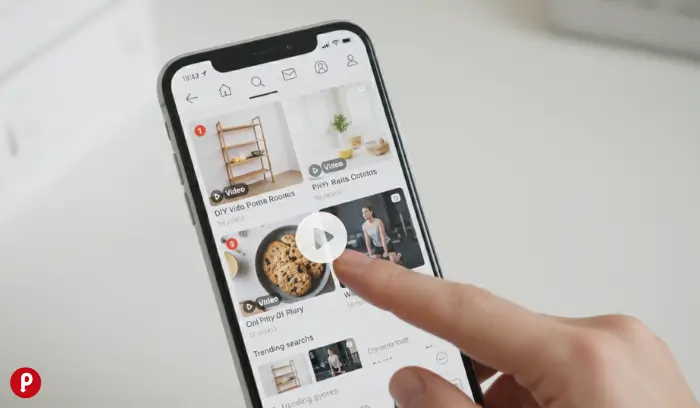
Browse or search for the video you want to download. Once you find it, tap on the Pin to open it.
Make sure the post is a video, not an image. If the video starts playing, you’ve selected the right one.
Step 2: Copy the Video Link
After opening the video, tap the three-dot menu in the top-right corner of the screen.
You can also tap the share icon at the bottom of the Pin.
When the options appear, select Copy Link. The Pinterest video link will be copied to your clipboard.
Step 3: Open Chrome and Go to PinDownloads
Now open the Chrome browser on your Android device.
Tap the address bar, type pindownloads.com, and press Enter.
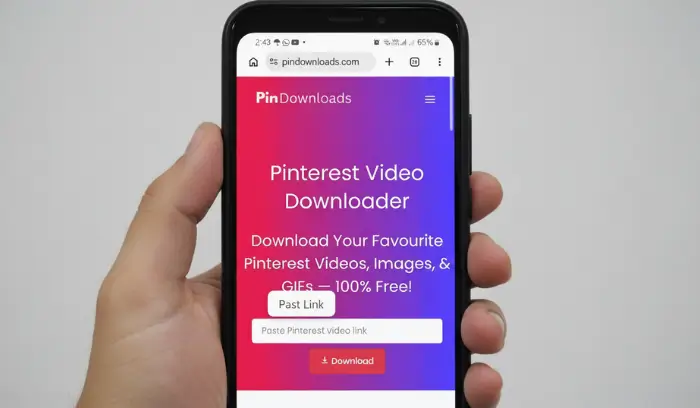
The PinDownloads website will load and display a simple page with a text box where you can paste your video link.
Step 4: Paste the Link
Tap inside the text box on the PinDownloads website.
Your keyboard will appear. Press and hold inside the box until the Paste option shows up.
Tap Paste to insert the Pinterest video link you copied earlier.
Step 5: Download the Video
Once the link is pasted, tap the Download button.
The site will process the link and prepare your video. Within a few seconds, the download will begin automatically.
Step 6: Find Your Downloaded Video
After the download finishes, you’ll see a notification on your phone.
Most videos are saved in the Downloads folder on your device.
You can open the Files app or File Manager to locate the file. On some phones, the video may also appear in the Gallery for quick access.
From there, you can watch the video, share it, or move it to another folder.
Where Downloaded Videos Are Saved on Android
When you download a video on Android, it is usually stored in the Downloads folder. However, depending on your device settings, the file may appear in other locations.
Here are the most common places to check.
Downloads Folder
The default location for Chrome downloads is the Downloads folder.
Open the Files app, tap Downloads, and look inside your internal storage to find your downloaded videos.
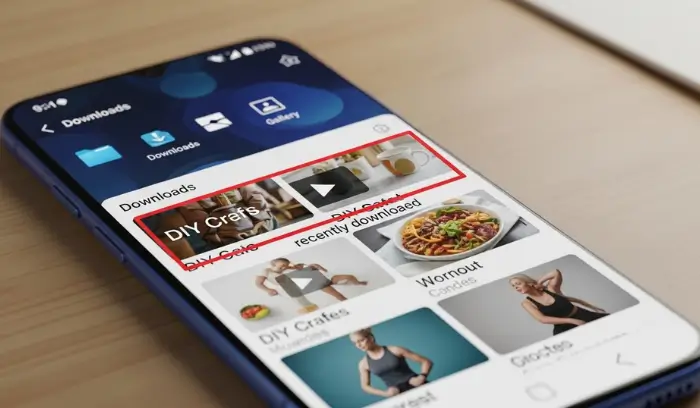
Chrome Downloads
You can also check downloads directly inside Chrome.
Open Chrome, tap the three-dot menu in the top-right corner, and select Downloads. This will show a list of files you recently downloaded.
Gallery App
On many Android phones, downloaded videos are automatically added to the Gallery.
Open the Gallery app and check the Recent or Downloads album.
Notification Panel
When a download finishes, a notification appears on your phone.
Tapping the notification will open the video file directly so you can view it right away.
Tips for Android Users
Use Chrome for Best Results
While browsers like Firefox or Samsung Internet work, Chrome usually provides the smoothest download experience. Chrome handles file downloads more reliably and makes it easier to find them.
Check Storage Permissions
If downloads stop working, check Chrome’s permissions.
Open Settings → Apps → Chrome → Storage and make sure the browser has permission to save files to your device.
Free Up Storage Space
Downloads can fail if your phone runs out of storage.
Check your available space in Settings and delete unused apps or files if necessary.
Use WiFi for Large Videos
Large Pinterest videos download much faster over WiFi.
Using WiFi also prevents you from using too much mobile data during downloads.
Rename Your Files
Some downloaded videos may have generic names, such as video.mp4.
To stay organized, open the Files app, long-press the video, tap Rename, and give it a clear name so you can find it later.
Troubleshooting Common Android Issues
Download Button Does Nothing
If the download button doesn’t respond, make sure the Pinterest link is valid.
Correct links usually look like:
- pinterest.com
- pinterest.com/pin/123456789
- pin.it
If the link is correct, refresh the page and paste the link again.
Video Plays Instead of Downloading
Sometimes the video may start playing instead of downloading.
If that happens, press and hold the video and select Download Video or Save Video from the menu.
Download Keeps Failing
If a download fails repeatedly, check your internet connection.
You can also try switching between WiFi and mobile data. Clearing the Chrome cache may help as well.
Go to Settings → Apps → Chrome → Storage → Clear Cache, then try the download again.
Can’t Find the Downloaded File
Open Chrome and tap the three-dot menu, then select Downloads.
This will show your recent downloads and allow you to open the folder containing the file.
Poor Video Quality
PinDownloads saves videos in their original quality.
If a downloaded video appears blurry, it usually means the video was uploaded to Pinterest in lower quality.
Why Use PinDownloads Instead of Apps
Many people wonder why a website is better than using a Pinterest downloader app.
There are actually several good reasons.
Safety First
Some downloader apps from the Play Store contain aggressive ads, trackers, or request unnecessary permissions, such as access to contacts, photos, or personal data.
Using a web-based tool like PinDownloads keeps things safer because it runs directly in your browser.
No Storage Used
Apps take up space on your phone.
Since PinDownloads is a website, it uses zero storage while still allowing you to download videos quickly.
Always Up to Date
When Pinterest updates its platform, many download tools break.
Web tools like PinDownloads can update automatically, while apps require manual updates from developers.
No Account Required
Many apps require you to create an account or sign in with Google.
With PinDownloads, you simply paste the video link and download instantly—no login required.
Works on Any Android Device
PinDownloads works on nearly all Android devices.
Whether you’re using a Samsung Galaxy, Google Pixel, OnePlus, or Xiaomi, the process is exactly the same.
All you need is your browser.
Downloading Multiple Videos
If you want to download several videos, simply repeat the process.
Copy a Pinterest link, open PinDownloads, paste the link, and start the download.
Batch downloading isn’t supported, but downloading videos one at a time helps prevent errors and keeps the full video quality.
To stay organized, you can create folders, such as Pinterest Recipes or Workout Videos, in the Files app, and move your videos there.
FAQs
Can I download Pinterest videos on Android without an app?
Yes. You can download Pinterest videos using a browser-based tool like PinDownloads. Simply copy the video link, paste it into the downloader, and save the video directly to your phone.
Is downloading Pinterest videos safe?
Downloading videos is safe if you use trusted websites. Avoid apps that request unnecessary permissions or access to your personal data.
Where are Pinterest videos saved on Android?
Downloaded videos are usually stored in the Downloads folder or appear in the Gallery app.
Do Pinterest videos download in HD quality?
Most download tools save videos in their original quality. If the video appears blurry, it means the original upload was low resolution.
Can I download Pinterest videos directly from the Pinterest app?
No, Pinterest does not currently allow users to download videos directly from the app. Instead, you can copy the video link and use a browser-based tool like PinDownloads to save the video to your Android phone.
Do I need to create an account to download Pinterest videos?
No. Tools like PinDownloads allow you to download Pinterest videos without signing up or creating an account. Simply paste the video link into the downloader and the video will be saved to your device.
Start Downloading Pinterest Videos on Android
Downloading Pinterest videos on Android is much easier than most people expect.
You don’t need to install apps, create accounts, or pay for subscriptions. Just copy the Pinterest video link, open Chrome, visit PinDownloads.com, paste the link, and download the video directly to your phone.
In most cases, the video will be saved to your device within seconds.
Once you try it for the first time, you’ll see how quick and convenient it is to save your favorite Pinterest videos and watch them anytime you want.